0.1 Introduction
Microsoft Office has been an essential office tools for computer users. In this tutorial, we are going to download Microsoft Office LTSC version from offical Microsoft website, install in our computer, then activate it using Arthytech’s Free KMS Server.
!!! WARNING !!!
This guide is just for EDUCATIONAL PURPOSE ONLY! Never download or activate your office if you do not own one! Always respect intellectual property and purchase a legal copy of Microsoft Office.
1.1 Gathering information of your Windows
If you do not know what version of windows you are using, follow the steps below to get your windows information and the corresponding Windows Volume Key
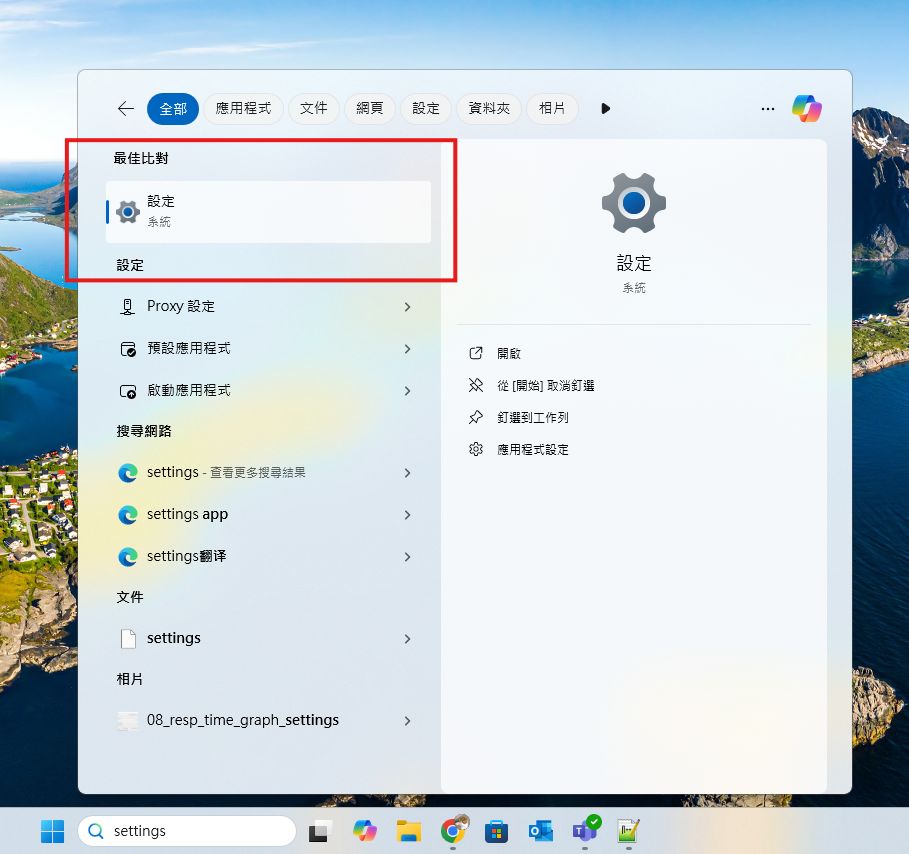
1. In Windows, Search “Settings”
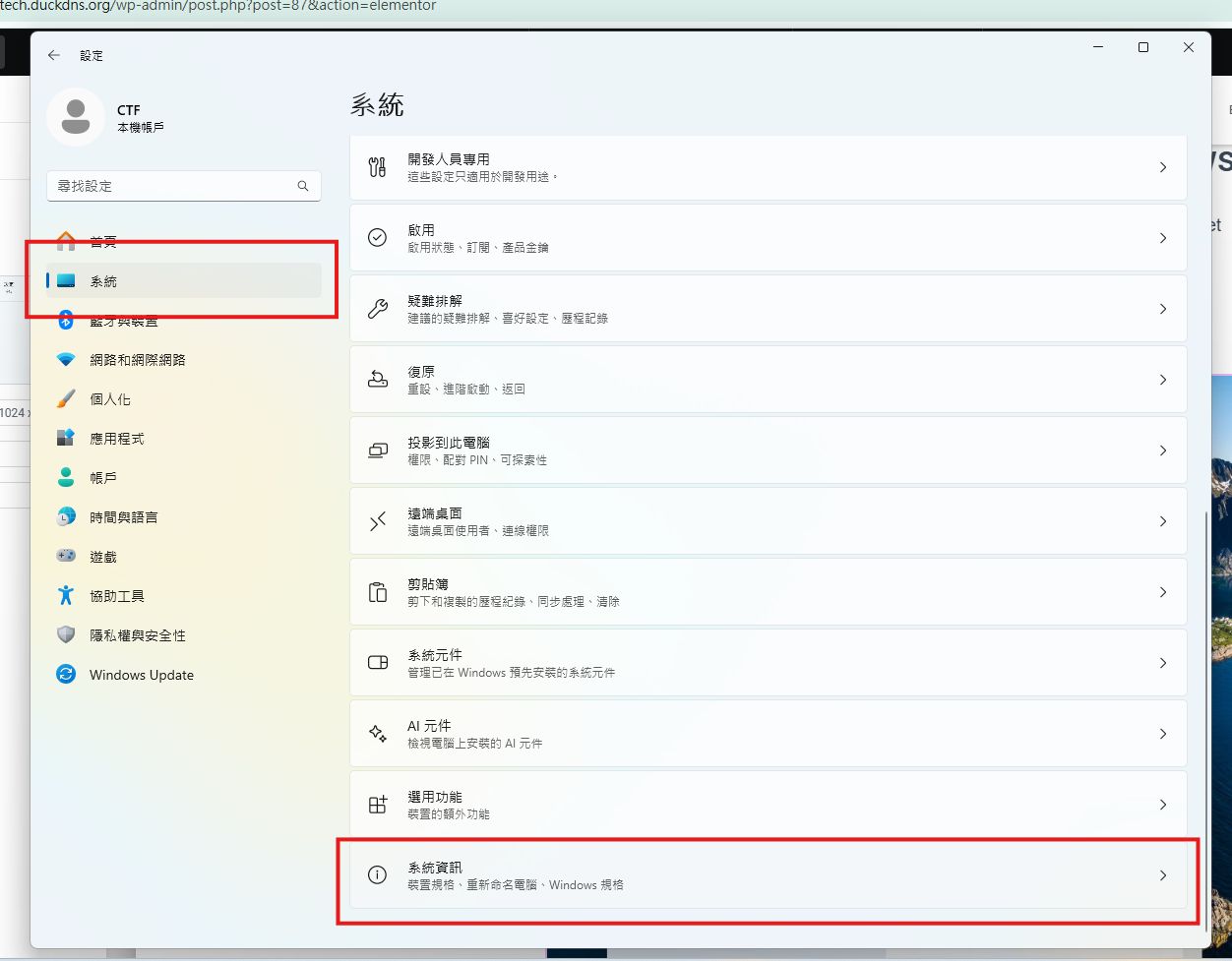
2. Navigate to “System” -> “System Information”
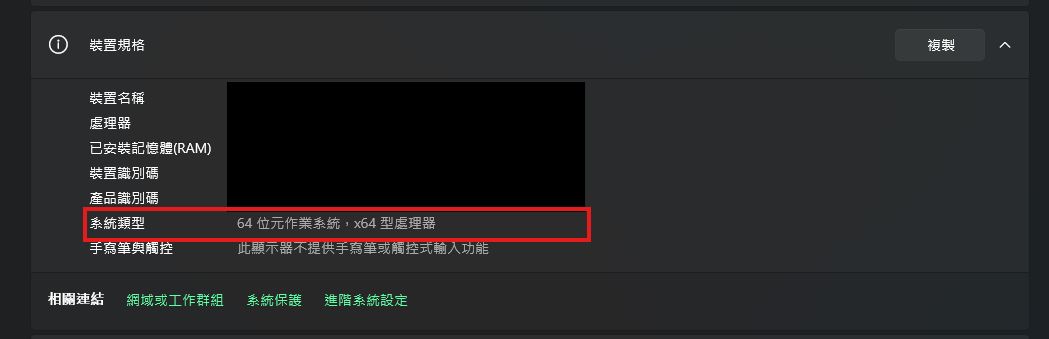
3. In Device Specification, you will be able to see what type of your system you are using. E.g x64 Operation System
1.2 Download More Office Apps (Optional)
By default, the config file provided by Arthytech will download the x64 version of Microsoft Office LTSC Professional Plus 2024, including:
- Access
- OneNote
- PowerPoint
- Word
- Excel
- OneDrive Desktop
- Outlook (classic)
- Publisher
If you want to install more apps, or x86 version of Microsoft Office, or even newer version of Microsoft Office. You will need to customize your config file before installing.
1. Navigate to :
https://config.office.com/deploymentsettings
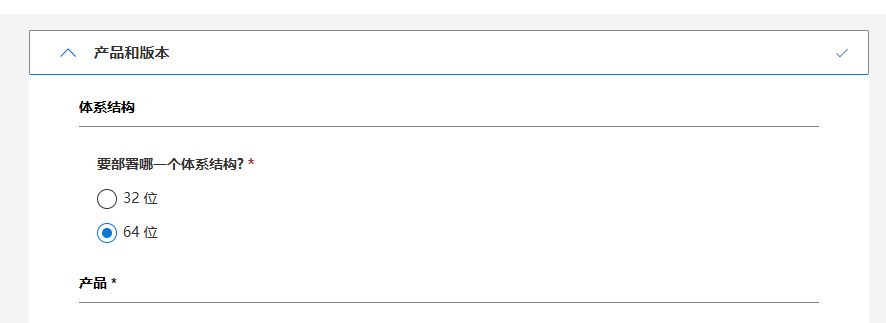
2. Choose your Device Operation System Type here. By default its x64,
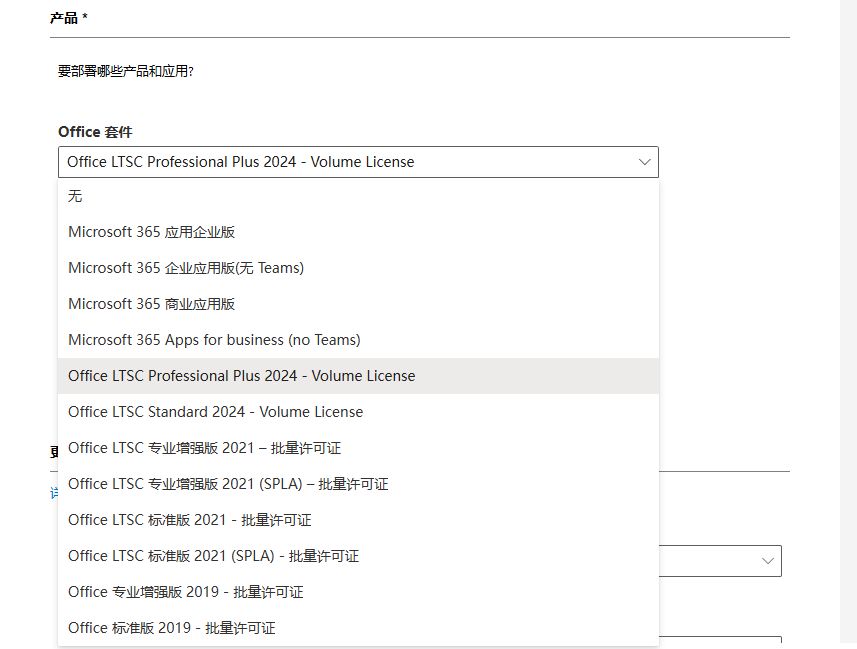
3. Select the version of Microsoft Office you want to install. You MUST select version that contaions “Volume License” or “批量許可證” in order to activate using Arthytech Server
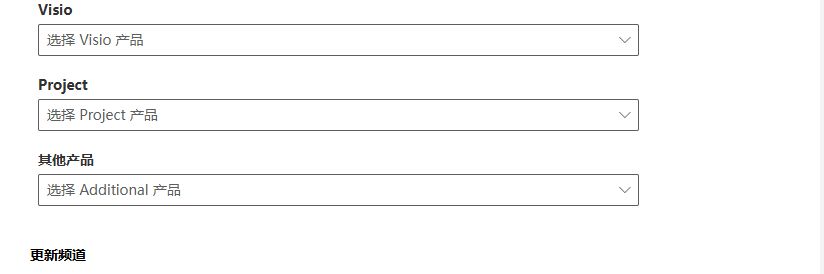
4. Install Additional apps of Microsoft Office.
E.g Visio, Project etc
Then, click on “Next”
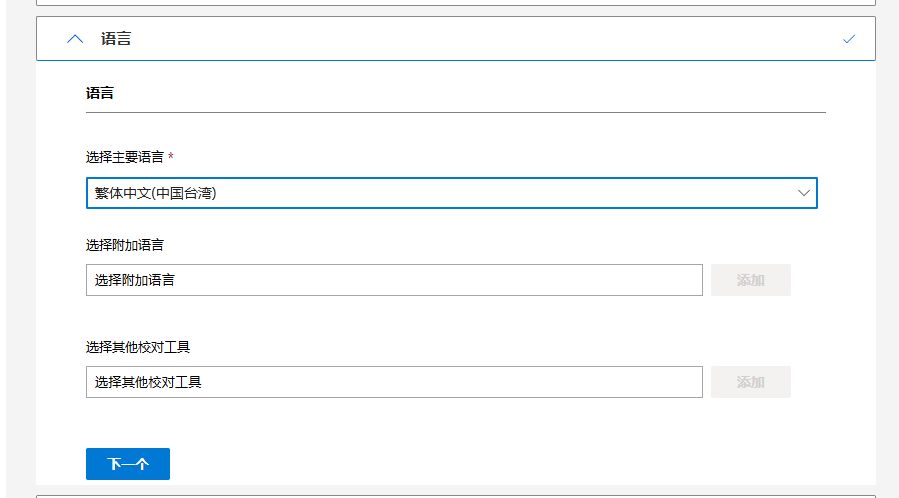
5. Select the language of Microsoft Office you want to install. Then Click on Next
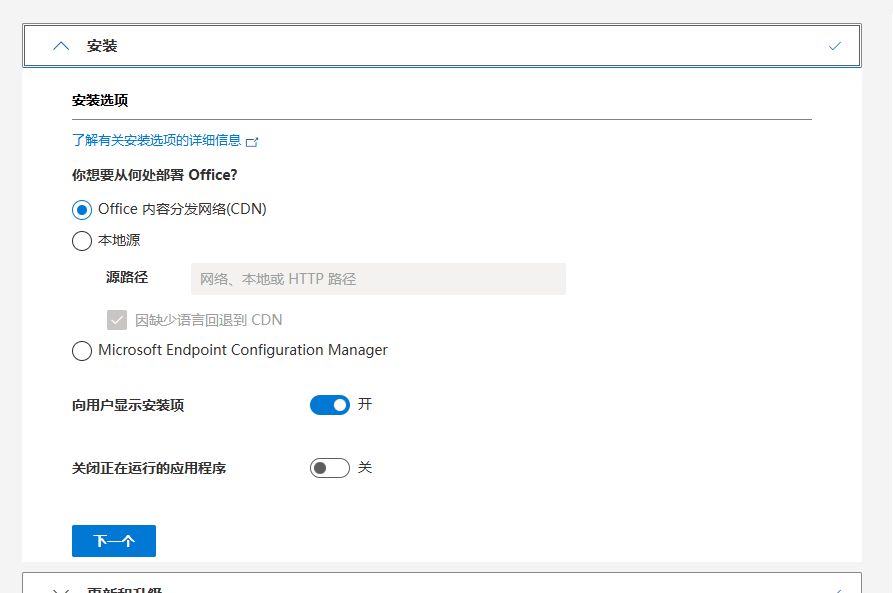
6. Leave the installation method as default and click on Next.
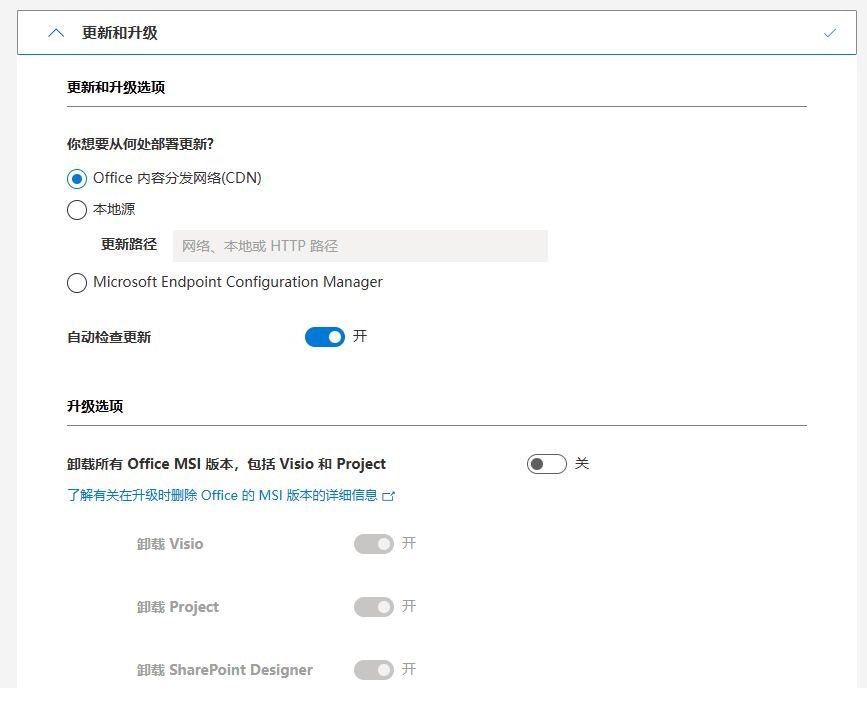
7. For Update and Upgrade, we recommend unstalling all of the existing Microsoft Office in your computer before installing the new version. However, you may also choose to uninstall any Microsoft Office app here. In this example i disabled this feature.
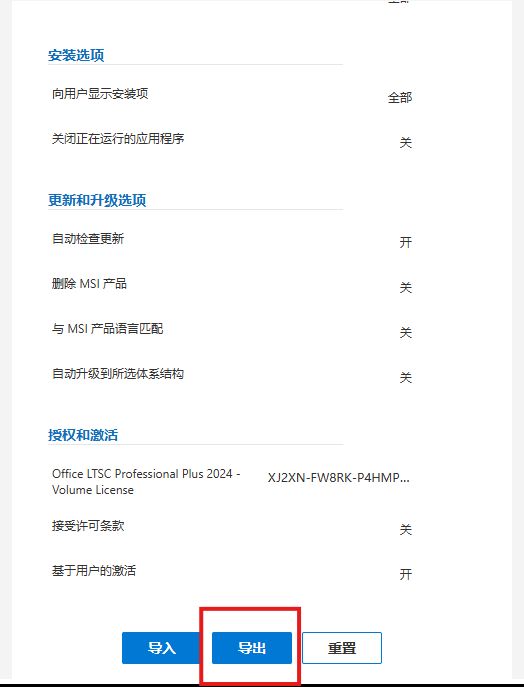
8. Leave the rest as default. Finally click “Finish”.
9. Click on “Export”
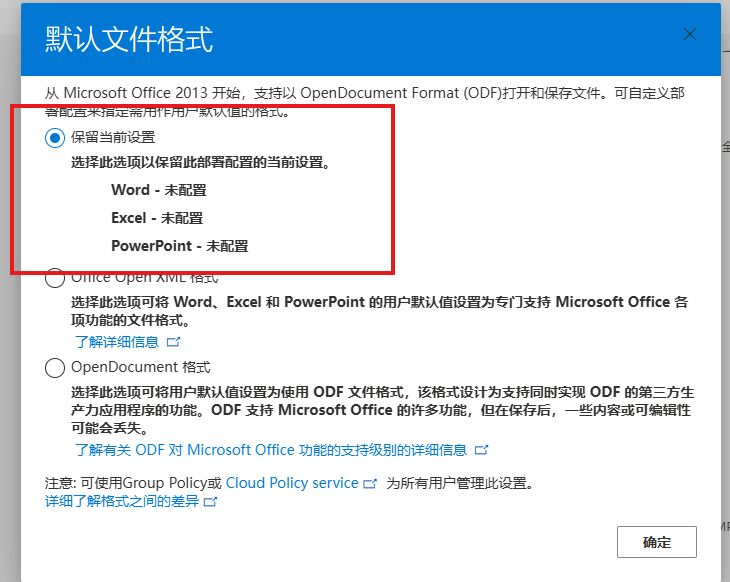
10. Click on “Keep Current Settings”
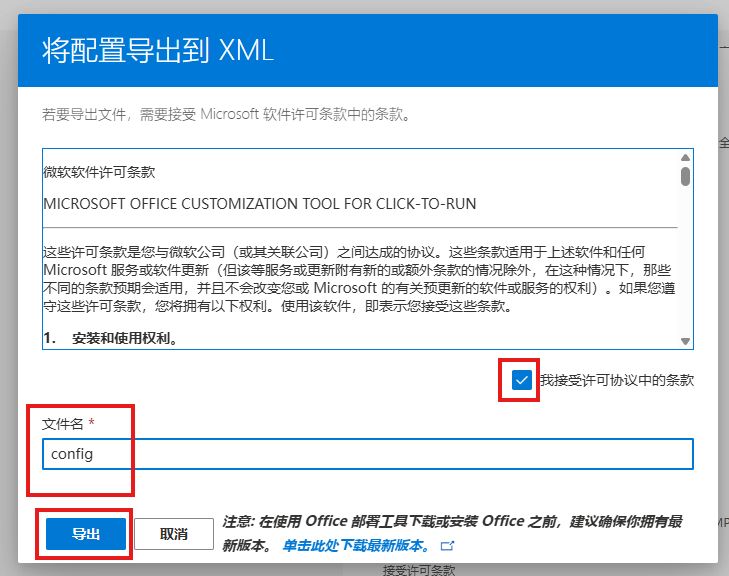
11. Accept the license, rename the document as “config”, then click on “Export”
1.3 Download Microsoft Office
1. Download the configuration file from Arthytech:
https://downloads.ctfcloud.cc/%E6%87%89%E7%94%A8%E7%A8%8B%E5%BC%8F%20Applications/Microsoft%20Office/Office.7z
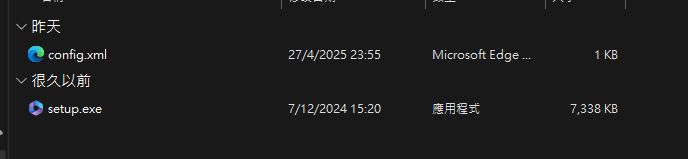
2. Extract the downloaded file. If you have changed the config file in section 1.2, please replace the config.xml with the one you just exported.
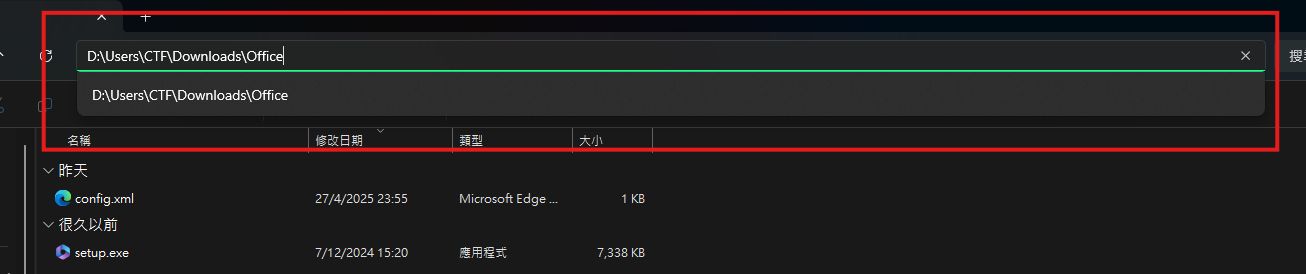
3. Click on the top and copy the path of your download folder.
E.g: D:\Users\CTF\Downloads\Office
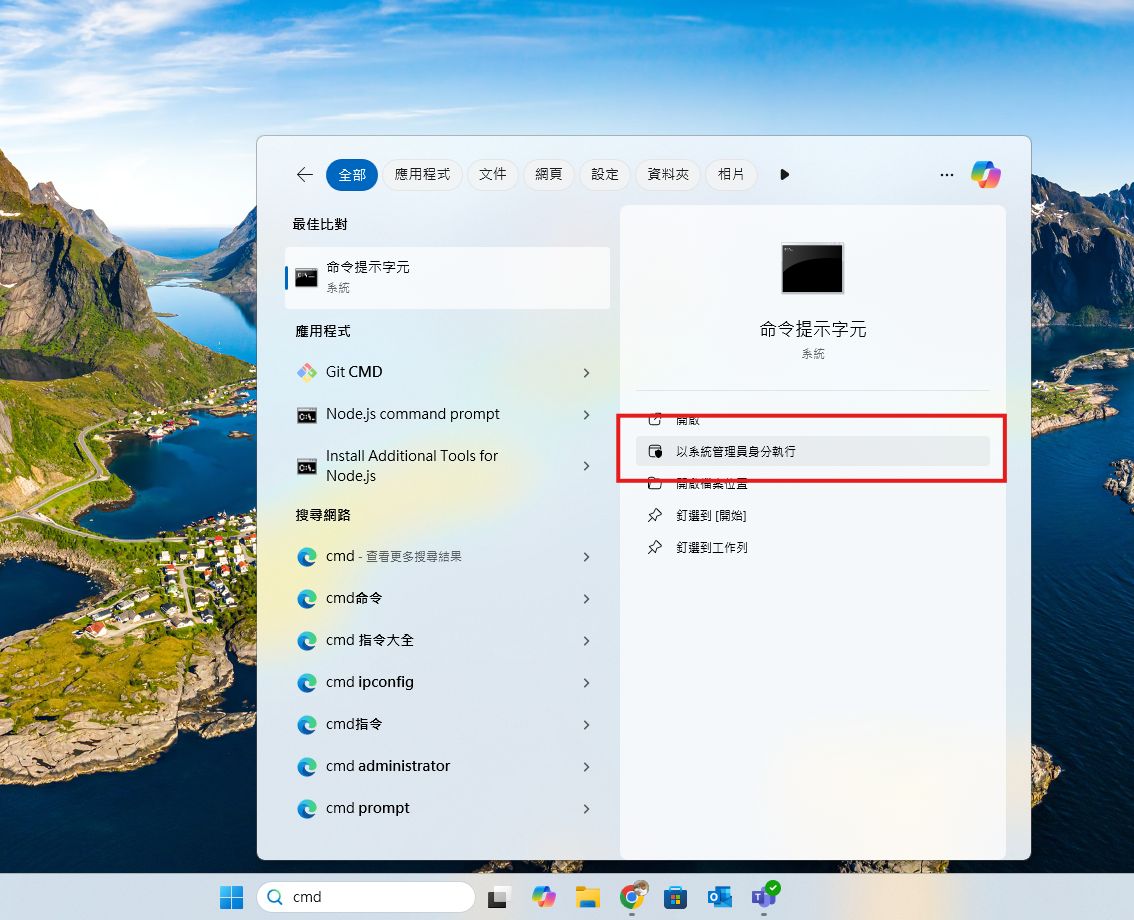
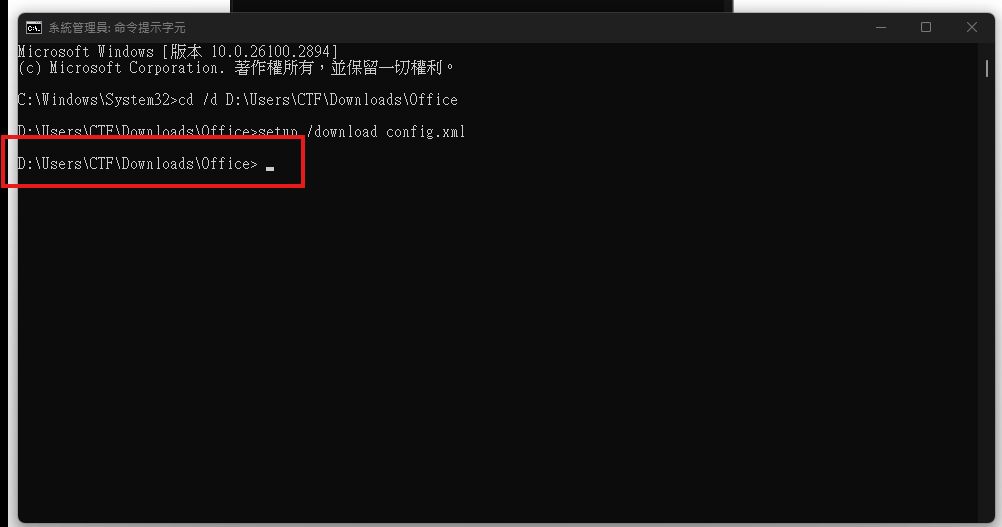
4. Search cmd, then run it as administrator
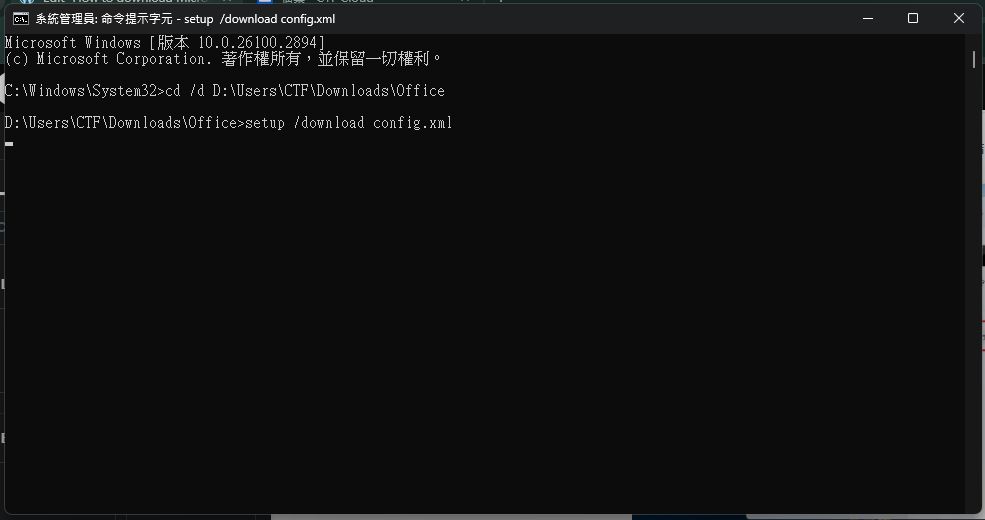
E.g: D:\Users\CTF\Downloads\Office
cd /d YOUR_PATH_HEREsetup /download config.xml
This will take a while, wait patiently until a new line in your cmd appears.
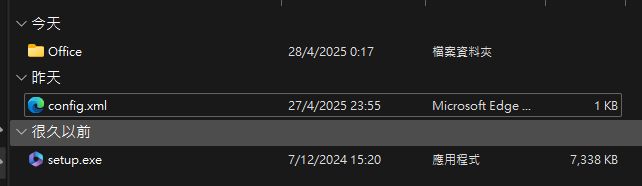
You will see a new folder named “Office” appear in your folder.
1.4 Install Microsoft Office
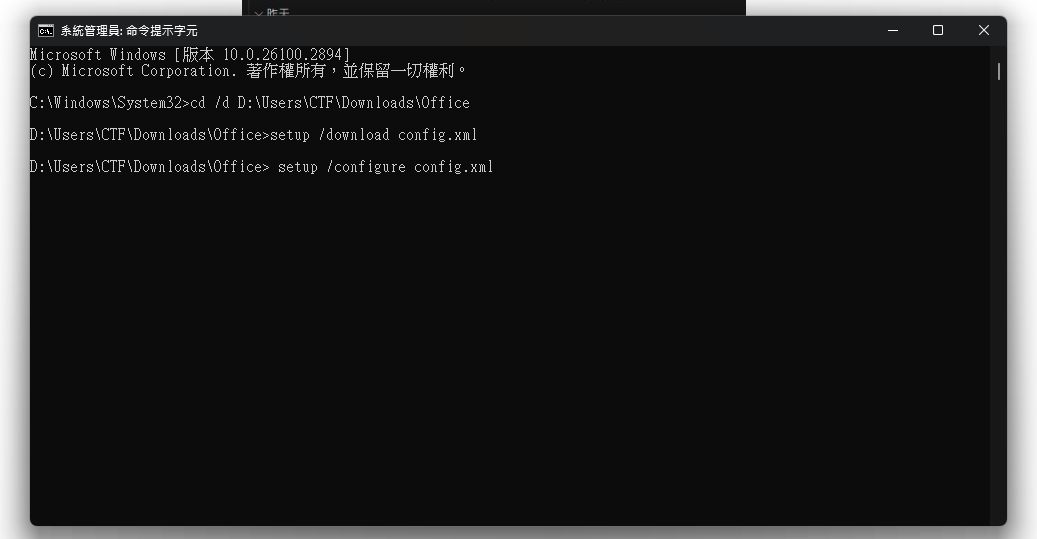
1. Paste the following code in your cmd:
setup /configure config.xml
Wait until the installation process ends.
cd /d C:\Program Files\Microsoft Office\Office16cscript ospp.vbs /sethst:arthytech.duckdns.orgcscript ospp.vbs /actNote: If the version you are installing is x86, you will need to use this command instead:
cd /d C:\Program Files (x86)\Microsoft Office\Office16

2.1 Summary
Congratulations! You have successfully installed and activate your Microsoft Office.